Explore your storage calendar
Open a day to see additions, removals, and net change. Review 7-, 30-, and 90-day trends.
See which folders grew, review daily file changes, and keep track from your Windows system tray.
Windows installer · One-time license
Your file details stay on your computer.
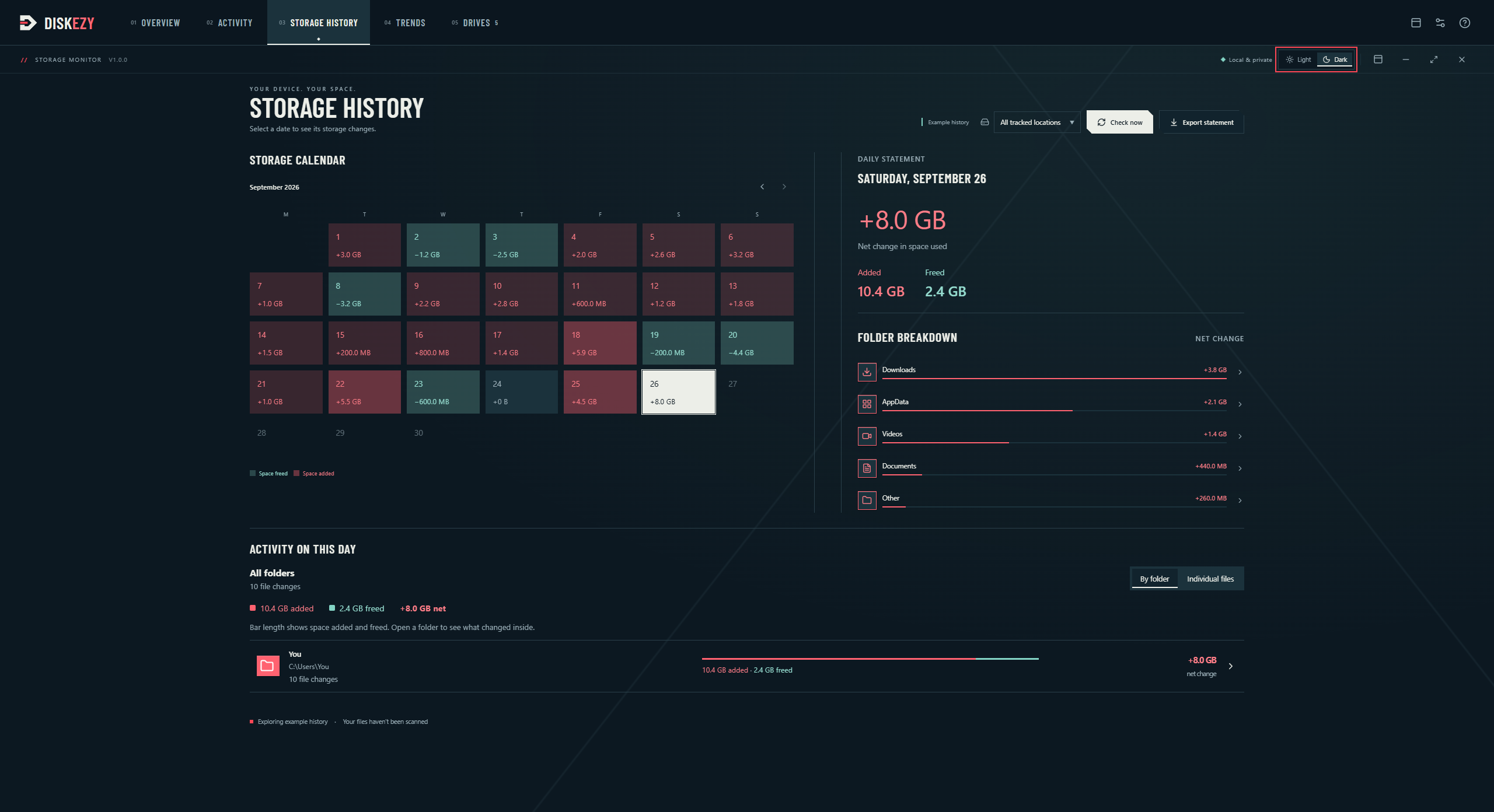
Your first check sets the starting point.
Every completed check adds more context.
Open a day to see additions, removals, and net change. Review 7-, 30-, and 90-day trends.
Choose checks every 5, 15, 30, or 60 minutes while DiskEzy runs. Keep it in the tray, check manually, or pause whenever you need.
Follow a drive or selected folders, filter their history, and keep a small desktop widget in view.
Export a storage statement as a CSV file. Your recorded file details and history remain on your PC.
Start with a folder you know, or choose a whole drive for a wider view.
Read the Windows storage guideOpen the Windows installer and follow the setup steps.
Open DiskEzy and activate your Windows license.
Choose your check schedule and the drives or folders to track. Let the first check finish before comparing changes.
A few details about tracking on Windows.
DiskEzy helps you investigate storage changes. It does not automatically remove files or promise to recover a particular amount of space. Review the files behind a change before deciding what to keep.
Checks run on your chosen schedule while the app runs. Changes appear when a check completes. Files created and removed between checks can be missed, and larger drives can take longer to scan.
File sizes and drive capacity measure different things. Compression, system files, and the Recycle Bin can affect the drive reading. Moving a file to the Recycle Bin can remove it from a tracked folder without increasing free space yet.
Ready to start your storage history?
Get DiskEzy for Windows